


|
|
Viewing multiple objects from one set of data (MultipleObjs)
A view can include multiple Graphics Display Kit objects. In this tutorial, we create a view consisting of four objects, each derived from the same set of data.
Uviewer3D is a full-featured 3D viewer, complete with a top-level object, a window, a view, and related editors. At the end of this tutorial, we explore the features of Uviewer3D.
Instance into the SingleWindowApp workspace the object Uviewer3D.

Notice in Libraries.Main.Viewers:
• There are three different full-featured viewers, called Uviewer3D, Uviewer2D, and Uviewer. They differ in how they render Graphics Display Kit objects. Uviewer3D renders all objects in 3D. Uviewer2D renders all objects in 2D. Uviewer can do both; connect objects to be rendered in 3D to Uviewer's first input port, and objects to be rendered in 2D to its second input port.
We now create four Graphics Display Kit objects, each derived from the same set of data. We use Diamond3D to create the data to render, then four instances of the Data Visualization Kit's scale object to create the four objects.
Instance Diamond3D and scale (four copies), then connect them together and to UViewer3D, as shown in the diagram below.
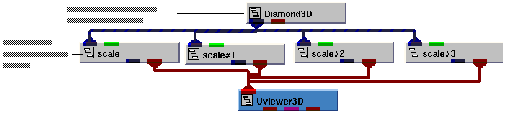
The application renders the four objects. At first, though, it appears that only one object is present. This is because the four are overlapping.
With the Control key pressed, select the first object with the left mouse button. Release the control key.
With the left mouse button, drag the object to a corner of the window.
Repeate the process for the other objects.
Use Uviewer3D's capabilities to manipulate the objects. For example, here is a series of steps for testing the inheritance of properties:
Select the top-level object (Top3D) and select the Apply button.
Display the properties editor by selecting Editors->Object, then selecting Properties from the Object option menu.
In the properties editor, select Primary Color from the Object Color option menu. Use the dials to change the color. Notice that all objects change. By default, an object inherits the properties of its parent, so when we change the top-level object, all objects change.
In the object selector, select one of the other objects and select Apply. Now the properties editor shows that object's current properties. (You could also have selected the object itself using the mouse inside the view.)
In the properties editor, change the object's color. Notice that the color of that object changes.
Explore Uviewer3D's capabilities
Explore Uviewer3D's editors and mouse operations. The tables below summarize Uviewer3D's capabilities.
If you have a three-button mouse, some of the standard operations can also be performed using the middle mouse button.
|
Accelerated
|
|
This completes the tutorial. The completed tutorial is available in Libraries.Examples.Graphics_Display.MultipleObjs.
|
|