


|
|
Probe locations on a 2D line (DrawLine2D)
The following example illustrates how to use the DrawLine2D module to probe the locations on a line in a 2D view. DrawLine2D is a general module that, given a screen space line represented by two endpoints, translates those endpoints into the coordinate system of any Graphics Display Kit object.
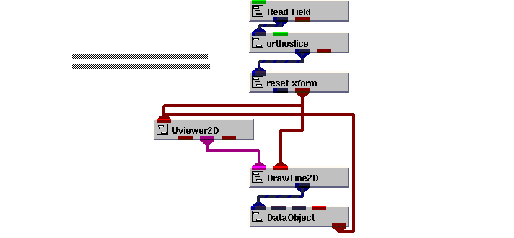
Instance DrawLine2D into the empty NE workspace.
This example is found in Libraries.Examples.Graphics_Display. Upon being instanced, the example renders a slice from hydrogen.fld in the viewer's window.
We are now ready to probe positions in the view.
Select Editors->Modules to make the modules user interface panel visible. Select DrawLine2D from the Modules option menu. This causes the user interface for the DrawLine2D module to appear.
Begin probing the view by drawing a line.
The mouse operations that control the line drawing are:
|
|
|
The DrawLine2D module draws a line from the start position to the end position. As long as the right button is held down the a line is drawn from the start position to the current end position. When the right button is released, the line is converted into a field.
The start and end points of the line are then displayed in the user interface for the DrawLine2D module. By default, the module updates the XY position immediately when the right button is released.
This causes the XY position to be updated only when the Measure button is clicked.
The slice of hydrogen has dimensions of 64 by 64. Notice that when the line is inside the extents of the slice, the values displayed in the DrawLine2D user interface for X and Y are in the range 0 to 64.
In the ModuleStack workspace, disconnect reset_xform.out_obj and DrawLine2D.obj_in.
Begin probing the view by drawing a line.
Notice that the values displayed in the DrawLine2D user interface now range from -5 in the lower left to 5 in the upper right. This is the default coordinate system of the camera. When there is no object as input to DrawLine2D, the screen space positions are translated into the camera's coordinate system.
Delete the DrawLine2D application.
|
|