


|
|
Probe a value in a 2D view (ImageProbe)
The DrawCursor2D module can be used to probe locations in a 2D view. DrawCursor2D is a general module that, given a screen space XY coordinate, translates that position into the coordinate system of any Graphics Display Kit object.
The following example shows how to extend the DrawCursor2D module to also return the value of the image at the XY position.
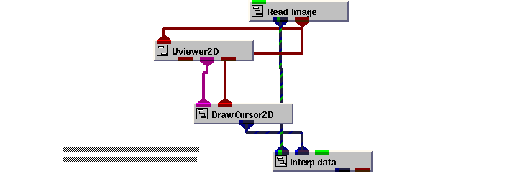
Instance ImageProbe into the empty NE workspace.
This example is found in Libraries.Examples.Graphics_Display. The example renders the image mandrill.x in the viewer's window.
We are now ready to probe values in the image.
Select Editors->Modules to make the modules user interface panel visible. Select DrawCursor2D from the Modules option menu. This causes the user interface for the DrawCursor2D module to appear.
This causes the XY position to be updated only when the right mouse button has been released (that is, at the end of the gesture).
Begin probing the view using the cursor.
The mouse operations that control the drawing of the cursor are:
|
|
|
The mandrill.x image has dimensions of 500 by 480. Note that when the cursor is inside the extents of the image, the values displayed in the DrawCursor2D user interface for X are in the range 0 to 499 and for Y in the range of 0 to 479.
In the application workspace, look at the image values.
Open the node_data array. It should look like "node_data[1]".
Scroll up to find the node_data array. It should have two arrows on it to indicate that it is an array. Press the right arrow once to access the first (and only) entry of the array.
Open the values array. It should look like "values[1][4]".
Resize DVinterpolate_data so you can easily see all four entries in the array.
The entries in the array are in order alpha, red, green, and blue. The range for the values is 0 to 255. Notice that if you probe the mandrill's nose which is a shade of red that the red value is dominate. Note that if you probe the mandrill's cheeks which are a shade of blue that the blue value is dominate.
Delete the ImageProbe application.
|
|