


|
|
Cropping a 2D region (RegionCrop2D)
Another useful example is when one view displays a filtered down version of a large image and the second view displays a section of the image at full resolution. This uses the ContinuousSketch to select a region within an image.
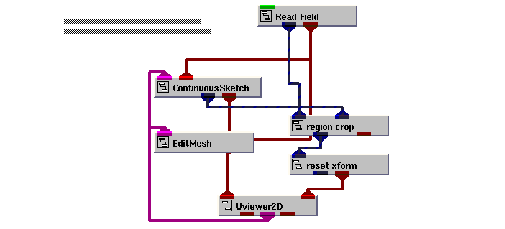
Instance RegionCrop2D into the empty NE workspace.
This example is found in Libraries.Examples.Graphics_Display. Upon being instanced, the example renders an image of Mount St. Helens in the 2D viewer's window. The second 2D view has nothing rendered in it initially.
Select a region from the image
We are now ready to select a region in the image to be displayed in the second 2D view.
Select Editors->Modules to make the modules user interface panel visible. Select ContinuousSketch from the Modules option menu. This causes the user interface for the ContinuousSketch module to appear.
Begin drawing a box, using the draw primitive operation.
The mouse operations that control the drawing in the ContinuousSketch module are:
|
|
|
In this example, the ContinuousSketch module is set up to draw a box in XOR mode. Once the operation is complete (that is, the right mouse button is released), the box is converted into a field since the Immediate toggle is set.
The extents of this field are used as input parameters by the region crop module to select the region to display in the second 2D view. Note that region crop is a macro that was built for this example. The V code for it can be found in v/gd_examp/GDinter6.v.
This touches on only a small portion of the capabilities in the ContinuousSketch module.
View the region in the second 2D view
Once a region is selected in the image, you can also view it in the second 2D view.
Look at the selected region in the second 2D view.
You can select a completely new region by repeating the same process that was used to generate the initial region.
Alternatively, we can edit the region in the initial 2D view and observe the effect that it has in the second 2D view.
Select EditMesh in the Modules option menu. This causes the user interface for the EditMesh module to appear.
In this example, the EditMesh is set up to edit a cell.
Edit the drawing by performing a select/move primitive operation.
The mouse operations that control editing in the EditMesh module are:
|
|
|
|
Press Control left button while the mouse is over a point or line in the drawing. | |
|
Hold down the Control key and drag the primitive while depressing the middle button. |
When the select operation takes place, the region is drawn in the highlight color.
When the move primitive operation is in progress, the current position of the updated region is echoed in the highlight color. By default, the EditMesh module is configured so when the move primitive operation is completed, the field is updated. This causes a new region to be cropped from the image and rendered in the second 2D view.
Delete the RegionCrop2D application.
|
|