


|
|
Adding interactors to a view (AddInteractors)
Interactors along with the Graphics Display Kit's virtual trackball editor allow you to directly manipulate objects in the view window. In this tutorial, we add an interactor to a view and demonstrate some of the capabilities of the virtual trackball editor.
We create the application's window and view with the application component Uscene3D.
Instance into the SingleWindowApp workspace the object Uscene3D.
When we instance Uscene3D, a black window appears inside it. This is where the data is rendered.
Create an object and generate field data
We need a Graphics Display Kit object with field data. We can create both with Read Geom, using the second output port.
Instance Read Geom and connect it to Uscene3D, as shown in the diagram below.
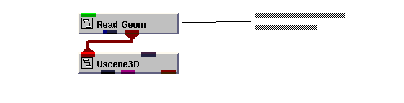
We are now ready to specify a data file. Select Editors->Modules to display the Read Geom user interface. Press the Browse button. A dialog box appears. Select teapot.geo, then select the OK button.
The application renders the teapot in the view's window.
Provide access to view information
We need to provide access to some of the parameters keep inside the view.
Create the interactor and trackball editor
We need to have a UI interactor and the virtual trackball editor.
Connect UItwoPoint.x to GDtrack_edit.x. Connect UItwoPoint.y to GDtrack_edit.y. Connect UItwoPoint.state to GDtrack_edit.event. These provide the trackball editor with screen space XY positions and the events start, run or stop.
Connect UItwoPoint.time to GDtrack_edit.time. This provides the trackball editor with the time of the event. This is used to determine if track rolling should be enabled.
Connect Uview_link to GDtrack_edit.view. Connect Uview_link.picked_camera to GDtrack_edit.camera. Connect Uview_link.picked_obj to GDtrack_edit.obj. These provide the trackball editor with an object to edit as well as the view and camera which are needed to convert screen space XY positions into a transformation matrix.
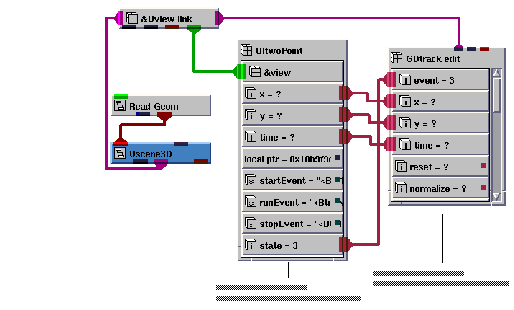
With these connections made, the trackball editor should now produce a transformation matrix that causes rotation when the left mouse button is held down and dragged. This is the default for the trackball editor.
Explore the trackball editor's capabliities
Now that we have the interactor and the trackball editor working the view window, let's explore the capabilities of the editor.
The mode subobject in GDtrack_edit controls what type of transformation the editor performs. With the connections you have made, you can control the mode by using the Left Button option menu at the bottom of the view. By default, the value of mode should be 0 which means Rotate. The following values are valid:
|
|
|
The rot_mode subobject controls what if any constraints are applied to the rotation. The following values are valid:
|
|
|
|
|
Constrain rotation to the XY axis. Select the largest angle of rotation. | ||
Try all the valid values for the rot_mode subobject and try rotating the object in the view.
Set the mode subobject in GDtrack_edit to 1. Press the left mouse button and drag the mouse in the view. The object should now be scaled.
This illustrates that one instance of the GDtrack_edit module can be used to perform all possible interactions with the object. This is done by simply selecting the type of interaction you want to perform prior to making the apppropriate gesture with the mouse.
The scale_mode subobject controls what if any constraints are applied to scaling. The following values are valid:
|
|
|
|
Try all values for the scale_mode subobject and try scaling the object in the view.
Set the mode subobject of GDtrack_edit to 2. Press the left mouse button and drag the mouse in the view. The object should now be translated.
The xlate_mode subobject controls what if any constraints are applied to XY translation. The following values are valid:
|
|
|
|
Try all values for the xlate_mode subobject and try translating the object in the view.
This completes the tutorial. The completed tutorial is available in Libraries.Examples.Graphics_Display.AddInteractors.
|
|