


|
|
Adding a second view window (TwoView)
Many times in an application you may want to have more than one view window in a single user interface shell. In this tutorial, we add a second view window to an existing viewer and share all the editors among the two views.
1. Start AVS/Express and choose Multi-window DataViewer with no viewer (select None as the Viewer type) from the startup dialog, from an existing AVS/Express session, start a new Multi-window DataViewer with no viewer by selecting the appropriate entries from the File->New Application... dialog, or clear an existing MultiWindowApp workspace, as appropriate.
Instance into the MultiWindowApp workspace the object Uviewer3D.

We need to add the second view window to Uviewer3D and configure the viewer so all the editors are shared between the views.
Modify the existing view so it occupies the left hand side of the view window. Make sure to keep the behavior of the view resizing when the panel resizes.
Change width to (<-.ViewPanel.UI.panel.width / 2).
Close ViewFrame. Open View Panel in DisplayParameters mode
Export the output port of panel.
Close ViewPanel, Close ViewUI. Close View. Close Scene.
Create a second view and modify it to occupy the right hand side of the view window. Make sure to keep the behavior of the view resizing when the panel resizes.
Open UScene3D in DisplayParameters mode. Open View in DisplayParameters mode. Open ViewUI in DisplayParameters mode.
Delete ViewPanel. We are reparenting the view to the existing window provided by Uviewer3D, so we need to delete this scene's original parent.
Open ViewFrame in DisplayParameters mode. Export the input port of parent.
Reparent the second view by connecting the right output port of Scene (exposed in Step 4) to the newly exposed right input port of Uscene3D.
Set up the second view's geometry as explained below. Set x to be a reference to (parent.width / 2) . Set width to be a reference to (parent.width / 2). Set height to be a reference to parent.height. When set, the new values should appear as in the following diagram:
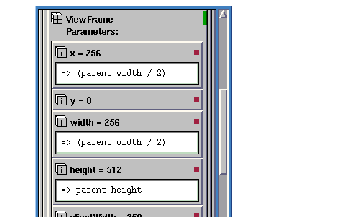
This causes the second view to occupy the right hand side of the shell. This also causes the view to resize when its parent resizes.
Close ViewFrame. Close ViewUI. Close Uscene3D.
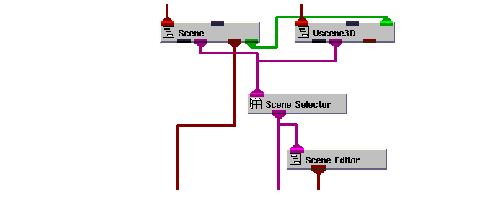
Share the viewer's editors between the two views by connecting Uscene3D.View.View to Scene_Selector.input_views.
Export Uscene3D.Top.child_objs to be an input port on Uviewer3D.
The diagram below shows the final connections between Scene, Uscene3D and Scene_Selector inside Uviewer3D.
Create two objects and generate field data
We need to create Graphics Display Kit objects and provide them with data to render.
Instance two copies of Read Geom.
Connect Read Geom to the left input port of Uviewer3D.
Connect Read Geom#1 to the right input port of Uviewer3D.
We're now ready to specify a data file. Select Editors->Modules to display the user interface for the Read Geom module appear. Select the Browse button to make a dialog box appear. Select teapot.geo, then select the OK button.
The application renders the teapot in the left view window.
We're now ready to specify a data file. Select Read_Geom#1 from the Modules option menu to make the user interface for the other Read Geom module appear. Select the Browse button to make a dialog box appears. Select math.geo, then select the OK button.
The application renders math in the right view window.
We can now share the editors between the two views. Any interaction in either view makes that view current and switches the editors to work with the objects in that view.
Select the teapot in the left view window with the left mouse button. Notice that the Current Object at the bottom of the view window says teapot.
Notice that the virtual trackball editor works in the left view window. The normal gestures for rotation, scale, and translation apply.
Select Editors->View. The view editor dialog box appears. Change the Background Color.
Select math in the right view window with the left mouse button. Notice that the Current Object at the bottom of the view window says math.
Notice that the virtual trackball editor now works in the right view window.
Select Editors->Object. The object editor dialog box appears. Select the Reset icon. Select the Normalize icon. Select the Center icon. Notice that these operations effect only the math object.
This completes the tutorial. The completed tutorial is available in Libraries.Examples.Graphics_Display.TwoView.
|
|