


|
|
Sketch in a 2D view, display in a 3D view (ClickSketch)
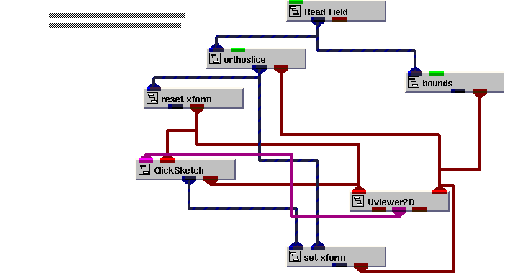
The following example illustrates how to use the ClickSketch module to draw on top of a slice from a volume. The drawing that is produced from the ClickSketch module is subsequently displayed in both a 2D and 3D view.
Instance ClickSketch into the empty NE workspace.
This example is found in Libraries.Examples.Graphics_Display. Upon being instanced, the example renders a slice from hydrogen in both viewer's windows. In the 2D view, the slice, rendered as a image, appears normalized in the view. In the 3D view, the slice, rendered as a mesh, appears normalized in the view.
We are now ready to construct a drawing in the 2D view.
Select Editors->Modules to make the modules user interface panel visible. Select ClickSketch from the Modules option menu. This causes the user interface for the ClickSketch module to appear.
By default, the ClickSketch module is set up to draw a polyline. Other primitives that are available are point, line, box, and polygon.
Choose the primitive that you want to generate from the radio box options at the top of the ClickSketch user interface.
Begin building a drawing, using the add point operation.
The mouse operations that control the drawing in the ClickSketch module are:
|
|
|
|
Hold down the Control key and press the right button. This completes the primitive that is in progress. This operation applies only to the polyline and polygon primitives. |
• The point primitive, each add point operation causes a small rectangle in the build color to be drawn.
• The line primitive, for every two add point operations, a line is drawn.
• The box primitive, for every two add point operations, a box is drawn.
• The polyline primitive, each add point operation adds another point to the polyline. The polyline is terminated with the close operation.
• The polygon primitive, each add point operation adds another point to the polygon. The polygon is terminated and automatically closed with the close operation.
Conversion of screen space primitives into an AVS/Express field.
This example has the ClickSketch module configured so that upon completion of a primitive it is immediately converted into an AVS/Express field. When this happens, the color of the primitives you have drawn on the slice changes from the build color to either the map color, if the Use Map Color toggle is set, or the primary color as specified by the Graphics Display Kit object's properties.
This example touches on only a small portion of the functionality in the ClickSketch module.
View the drawing in the 3D view
Once the drawing is converted into an AVS/Express field, you can also view it in the 3D view.
Delete the ClickSketch application.
|
|