


|
|
Example: Replacing DefaultDatamap in DataObject (Replace Datamap)
As described previously, DataObject includes DefaultDatamap, so it supplies a datamap whose color range is blue to red. The Data Visualization Kit's readers, geometries, filters, and mappers include DataObject, so they too include DefaultDatamap. You can easily replace DefaultDatamap with another predefined datamap, as illustrated below.
Instance into the SingleWindowApp workspace the following: ReadField, bounds and isosurface. Then, connect them as shown in the diagram below.
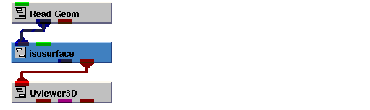
You need to supply some data for the example to use.
Select Editors->Modules to make the modules user interface panel visible. Select Read Field from the Modules option menu to make the Read Field user interface visible. Select the Browse button, a dialog box appears. Select wind.x, then select the OK button.
Select Editors->Light to display the light editor's user interface. Select Bi-Directional in the light type option menu.
Select Editors->Modules to make the modules user interface panel visible. Select isosurface from the Modules option menu. Deselect Data0 and select Data1 from the iso component radio box. This causes isosurface to generate the isosurface from one component and map it with the colors from another component.
Select the isosurface object in the view using the left mouse button. This makes isosurface the current object. Notice that the Current Object label at the bottom of the view window now says isosurface.
Select Editors->Datamap to make the datamap editor's user interface visible.
Notice that the data value at the right of the editor's window is 46.77. The data value at the left of the editor's window is -20.84. Isosurface's datamap is currently ranged to these values.
You are now ready to replace the existing datamap.
From the Options option menu, select Input/Output. Select the Browse button.
Select GreyScale and hit the Apply button. This datamap is found in Libraries.Templates.DATAMAPS.
Notice that the isosurface is now colored in shades of grey as you would expect with a grey scale datamap.
The completed example is found in Libraries.Examples.Graphics_Display.ReplaceDatamap.
|
|